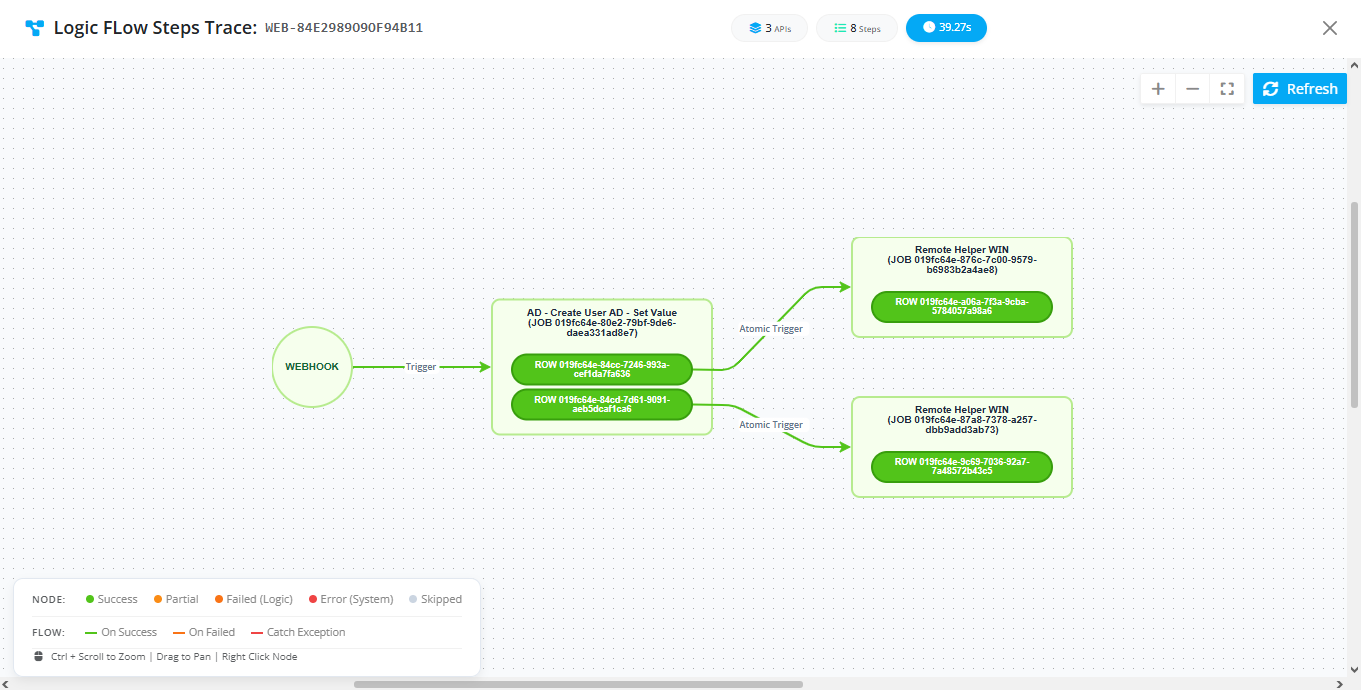
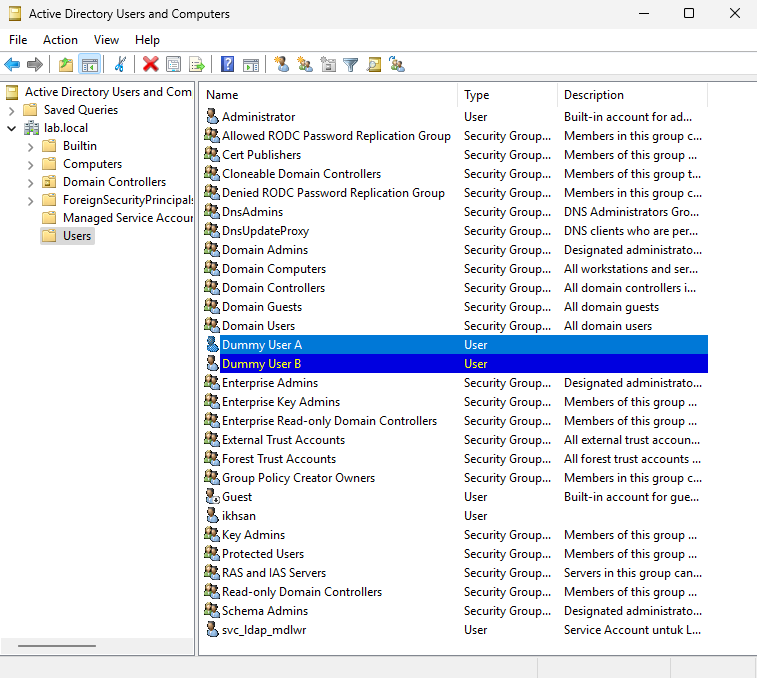
Distributed Remote Execution
Overview
This use case demonstrates how to execute remote scripts and administrative commands safely across distributed infrastructure using MdlWr.
In many enterprise scenarios—such as provisioning Active Directory (AD) user accounts on a remote Windows domain controller—direct local access is restricted. MdlWr solves this by leveraging built-in helpers (like Remote Helper WIN) to securely dispatch and execute PowerShell or CMD commands on remote Windows servers without exposing internal infrastructure vulnerabilities.
Prerequisites & Architecture Workflow
[ Trigger / External App ]
│ (Sends payload / Webhook)
▼
[ MdlWr ] ──(1. Loads Remote Credentials)
│
├──(2. Executes Logic Flow)
│      ├── Maps target AD server hostname/IP
│      ├── Injects secure credentials & PowerShell command payload
│      └── Dispatches via Remote Helper WIN
│
▼
[ Remote Windows / AD Server ] (Executes PowerShell Command)
Network & Security Note: To enable remote execution, ensure that the target Windows server has the necessary remote management ports open (typically WinRM HTTP port
5985or HTTPS port5986) and proper Windows Remote Management (WinRM) services configured.
Follow the step-by-step implementation guide below to configure this distributed execution flow.
Step-by-Step Implementation Guide
Step 1: Create a Credential Record
Store the administrator credentials required for MdlWr to authenticate securely with the remote Active Directory or Windows server.
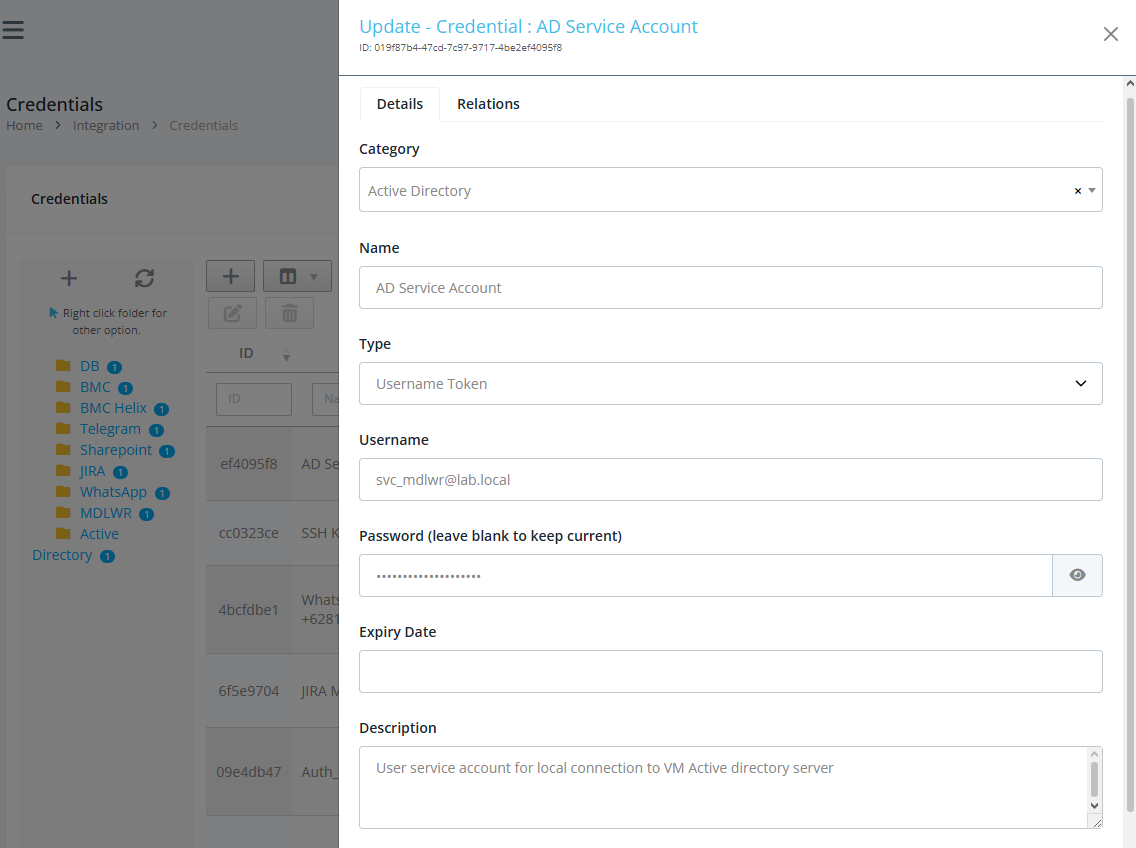
- Navigate to Integration > Credential in the MdlWr dashboard.
- Create a new credential entry containing the administrative username and password (or key) needed to access the target remote Windows host. Save the configuration.
Step 2: Configure the Logic Flow
Set up the asynchronous webhook flow that will orchestrate the remote command dispatch.
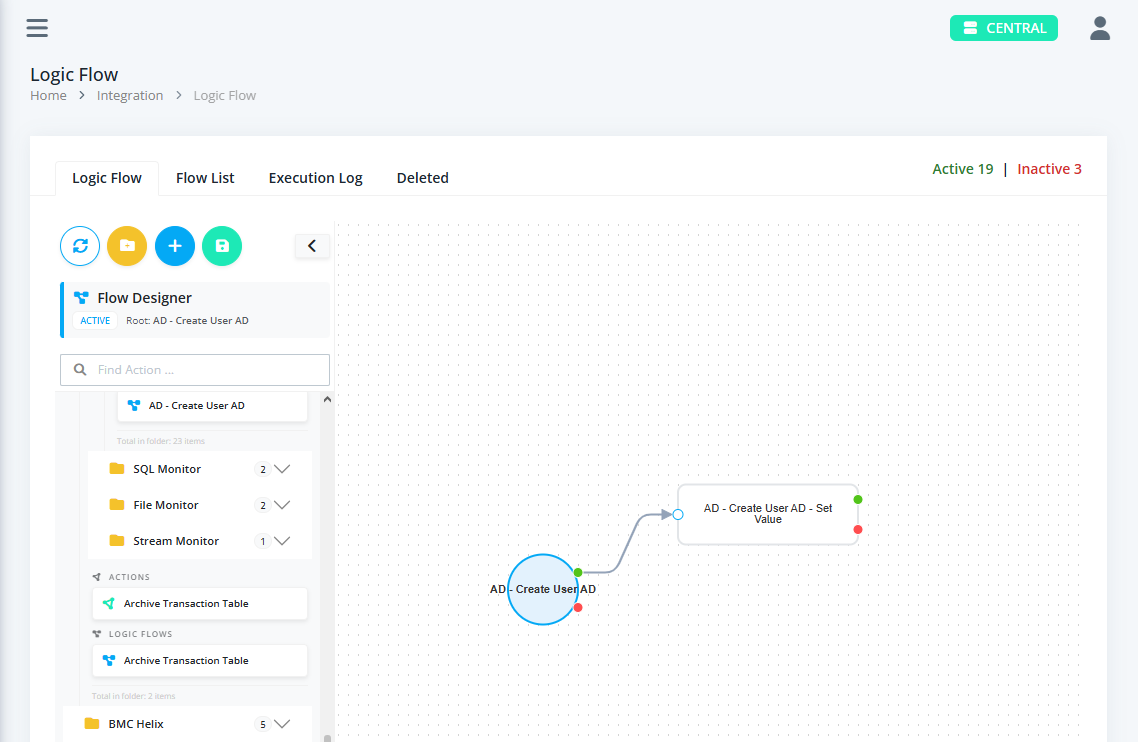
- Navigate to Integration > Logic Flows.
- Create a new logic flow and configure it as Async with an Execution Mode of
Webhook. - Fill in the required metadata fields such as Name, Path, and Category.
Step 3: Configure Target URL and Credentials
Define where the command should be sent and how it should authenticate.
- Set the Target URL (
#target_url) to the hostname or IP address of the remote AD/Windows server. - Select the credential record you created in Step 1 from the Cred Key dropdown (
#cred_key).
Step 4: Author the PowerShell Script Action
Write or define the command payload within the action editor block.
samaccountname = body.get('login_id', 'default_user')
name = body.get('name', 'Default Name')
email = body.get('email', f"{samaccountname}@namadomain.local")
user_password = body.get('pass', 'Password123!')
domain_upn = body.get('upn', f"{samaccountname}@namadomain.local")
user_path = body.get('path', 'CN=Users,DC=namadomain,DC=local')

# -------------------------------
# 3. Construct Dynamic PowerShell Command & Steps (Idempotent)
# -------------------------------
ps_cmd = (
    f"Import-Module ActiveDirectory; "
    f"$exists = Get-ADUser -Filter \"SamAccountName -eq '{samaccountname}'\" -ErrorAction SilentlyContinue; "
    f"if (-not $exists) {{ "
    f"    $SecPass = ConvertTo-SecureString '{user_password}' -AsPlainText -Force; "
    f"    New-ADUser -Name '{name}' -SamAccountName '{samaccountname}' "
    f"    -UserPrincipalName '{domain_upn}' -EmailAddress '{email}' "
    f"    -Path '{user_path}' -AccountPassword $SecPass -Enabled $True; "
    f"    Write-Output 'User created successfully.'; "
    f"}} else {{ "
    f"    Write-Output 'User already exists, skipping creation.'; "
    f"}}"
)

steps = [
    {
        "action": "run",
        "cmd": f"powershell -Command \"{ps_cmd}\""
    }
]

logs.append(f"Generated AD creation steps for user: {samaccountname}")
- In the action script editor, author the PowerShell or CMD command you want to execute (e.g., user creation scripts, group assignments, or directory queries).
- Ensure you pass or map the required dynamic values: the target command payload, target URL, and the selected
cred_keyto store/resolve the execution context.
Step 5: Integrate the Remote Helper WIN Component
Incorporate MdlWr's native utility block to handle the secure network transport and execution handshake.
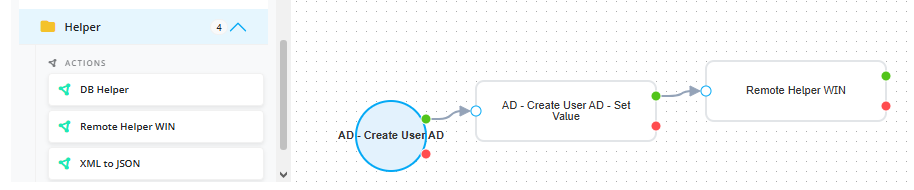
- Locate the pre-built helper block under Helper > Remote Helper WIN.
- Drag and connect the helper component within your logic flow structure, ensuring all branches are tied correctly to the Success execution status.
Step 6: Test via Flow Tester
Verify that your distributed execution pipeline communicates successfully with the remote host before activating it in production.
{"items":[
    {
        "login_id": "dummy.user.a",
        "name": "Dummy User A",
        "email": "dummy.user.a@lab.local",
        "pass": "Dummy2026",
        "upn": "dummy.user.a@lab.local",
        "path": "CN=Users,DC=lab,DC=local"
    },
    {
        "login_id": "dummy.user.b",
        "name": "Dummy User B",
        "email": "dummy.user.b@lab.local",
        "pass": "Dummy2026",
        "upn": "dummy.user2@lab.local",
        "path": "CN=Users,DC=lab,DC=local"
    }
]}
- Navigate to System > Flow Tester.
- Select your newly created remote execution logic flow via the folder browser.
- Provide a test payload containing the parameters for the remote command (e.g., new user details) and trigger the execution.
- Review the real-time execution logs and output results to confirm the command executed successfully on the remote Windows server.