Manual Guide: User Profile & API Key
The Profile page is a secure, private workspace accessible to every authenticated user in MdlWr. From this page, you can manage your personal account information, view your account summary, and generate or control programmatic API keys for external integrations.
1. Interface Layout
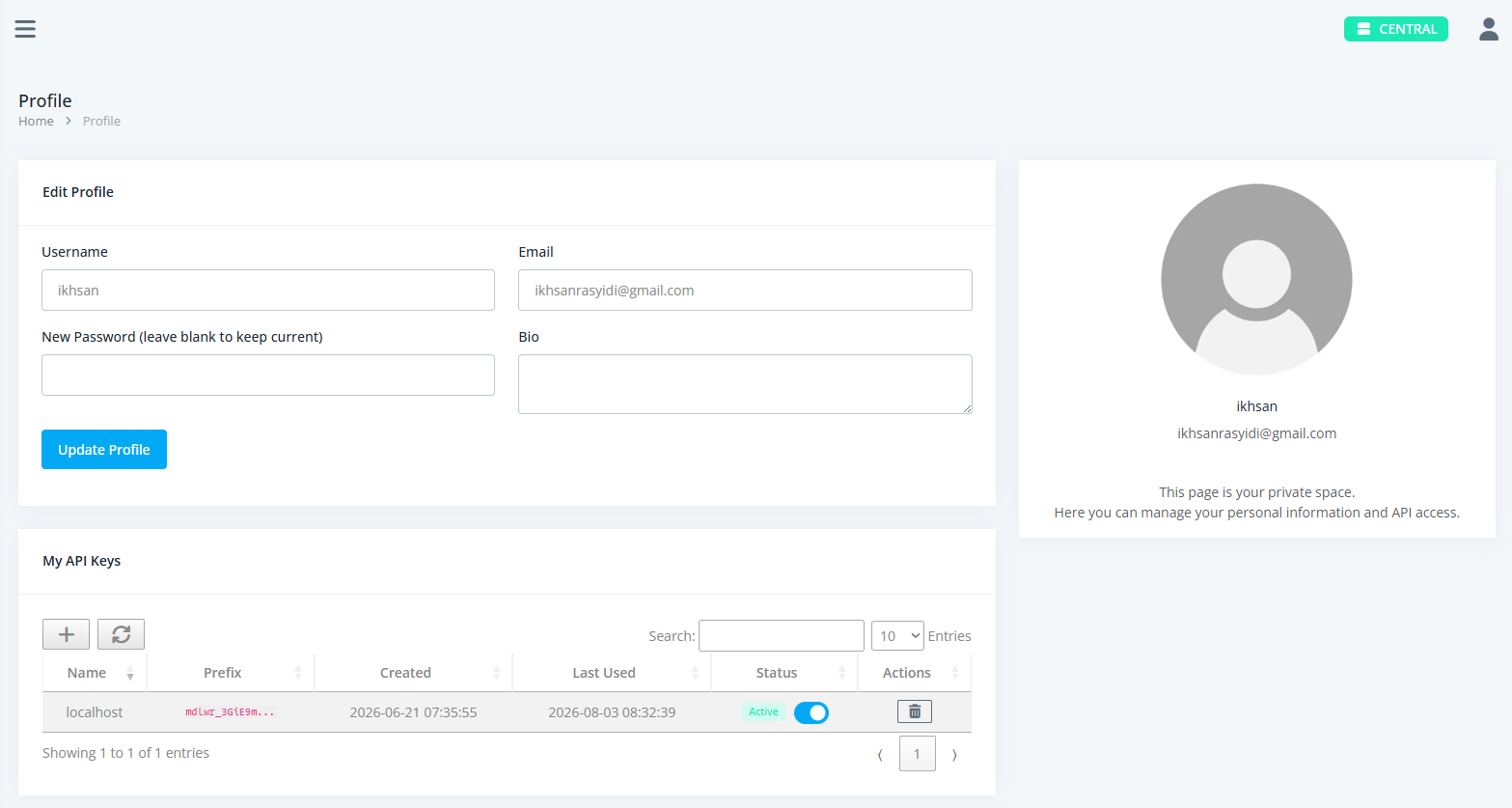
The Profile interface is structured into three main blocks:
-
Edit Profile Form (Left Column): A responsive form that displays your account details (such as username and email). Depending on system permissions, certain fields are set as read-only while others can be updated directly using the Update Profile button.
-
User Identity Sidebar (Right Column): Displays your profile avatar image, current username, registered email address, and a contextual status card highlighting your private session space.
-
My API Keys Section (Bottom Card): An interactive data grid that lists all personal API access tokens tied specifically to your account.
2. Core Features & Operations
Updating Personal Information
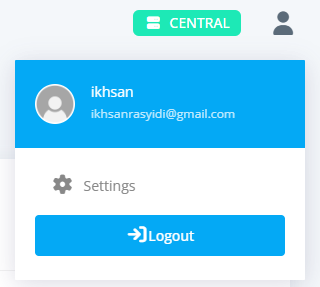
- Navigate to your profile by clicking your user avatar/name in the top-right header, then select Settings.
- Modify any editable input fields within the Edit Profile card.
- Click Update Profile to save your modifications.
Managing Personal API Keys
The My API Keys section provides full lifecycle management for your integration tokens:
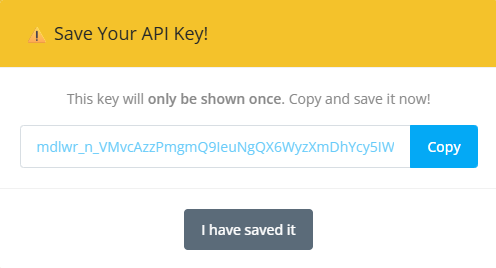
- Generating a New API Key:
- Click the button located on the top-left toolbar of the API keys table.
- Enter a descriptive name for your key when prompted (e.g.,
My WebsiteorHelix Integration). - Upon success, a high-security modal prompt titled ⚠️ Save Your API Key! will appear.
- Click Copy to save the raw API key to your clipboard.
⚠️ Important: The raw key is only shown once. If you lose or forget it, you will need to revoke it and generate a fresh key.
-
Click I have saved it to close the security prompt. The new key will instantly populate in your table list with a unique prefix.
-
Toggling Key Status (Active / Suspended): Use the interactive button inside the Status column of any table row to instantly enable or suspend an API key without deleting it. The status badge updates in real time.
-
Revoking an API Key: Click the button on the corresponding row and confirm the prompt to permanently revoke the token. Revoked keys stop working immediately.
-
Refreshing Table Data: Click the on the toolbar to manually reload your latest API key records from the server.